Developing Scenarios
The AISandbox engine is designed to be easily expanded with new simulations being contributed by the community.
To add a new simulation, the following are required:
- A SimulationBuilder class that describes the options specific to the simulation and creates simulation instances.
- A Simulation class that holds the main logic. It must provide:
- A
stepmethod which advances the simulation one tick. - A
visualisemethod which draws the current state onto a 1920x1080 Graphics2D surface.
- A
- A Protocol Buffer definition (
.protofile) that defines the messages exchanged between the simulation and external agents. - A new entry in SimulationEnumeration to register the simulation with the engine.
- A mock agent and test class to verify the simulation works correctly.
Each of these is explained in detail below, using the Multi-Armed Bandit simulation as a worked example.
Overview of the Engine
The engine separates concerns into four key interfaces:
- SimulationBuilder — factory and configuration container. Exposes parameters for the UI and CLI, and builds a
Simulationinstance. - Simulation — the game/scenario logic. Communicates with agents and renders visual output.
- Agent — represents a connected player.
NetworkAgenthandles real TCP connections;MockAgentis used for testing. - OutputRenderer — handles display.
FXRenderershows live JavaFX output,BitmapOutputRenderersaves PNG frames, andNullOutputRendererdiscards output (useful for headless testing).
The runtime flow is:
- The user selects a simulation and configures its parameters.
- The engine creates
Agentinstances (oneNetworkAgentper player, listening on TCP). SimulationBuilder.build()creates aSimulationfrom the agents, aTheme, and aRandominstance.- A
SimulationRunnerthread callssimulation.step(outputRenderer)in a loop until stopped. - On shutdown,
simulation.close()andagent.close()clean up resources.
Step 1: Define the Protocol Buffer Messages
Create a .proto file in src/main/proto/. This defines the messages that your simulation will exchange with external AI agents over TCP. Most simulations follow a State -> Action -> Result pattern per step:
- State — sent from the simulation to the agent, describing the current game state.
- Action — sent from the agent back to the simulation, describing the agent’s chosen move.
- Result — sent from the simulation to the agent, reporting the outcome of the action.
Here is the Bandit example (src/main/proto/Bandit.proto):
syntax = "proto3";

package bandit;
option java_multiple_files = true;
option java_package = "dev.aisandbox.server.simulation.bandit.proto";

message BanditState {
  string sessionID = 1;
  string episodeID = 2;
  int32 banditCount = 3;
  int32 pullCount = 4;
  int32 pull = 5;
}

message BanditAction {
  int32 arm = 1;
}

message BanditResult {
  int32 arm = 1;
  double score = 2;
  Signal signal = 3;
}

enum Signal {
  CONTINUE = 0;
  RESET = 1;
}
Key points:
- Use a unique
packagename matching your simulation. - Set
option java_packageto the target Java package (typicallydev.aisandbox.server.simulation.<name>.proto). - Set
option java_multiple_files = trueso each message gets its own Java class. - Generated Java code is placed in
build/generated-src/and is excluded from CheckStyle and PMD analysis. - A
Signalenum withCONTINUEandRESETvalues is a common pattern for episodic simulations.
Step 2: Create the SimulationBuilder
The SimulationBuilder implementation acts as both a configuration object and a factory. The engine calls its methods to display options in the UI and CLI, and to construct the simulation when the user clicks “Run”.
The interface requires the following methods:
| Method | Purpose |
|---|---|
getSimulationName() |
Short name, no whitespace (e.g. "Bandit") |
getDescription() |
Human-readable description of the simulation |
getParameters() |
List of configurable SimulationParameter records |
getMinAgentCount() |
Minimum number of agents required |
getMaxAgentCount() |
Maximum number of agents allowed |
getAgentNames(int) |
Default display names for agents (e.g. "Agent 1", or role-based names like "Dispatcher") |
build(List<Agent>, Theme, Random) |
Construct and return the Simulation instance |
Configurable Parameters
Parameters are exposed through SimulationParameter records:
new SimulationParameter("banditCount", "The number of bandits", BanditCountEnumeration.class)
Each SimulationParameter has:
- name — must match a getter/setter pair on the builder (e.g.
"banditCount"matchesgetBanditCount()/setBanditCount()). - description — displayed in the UI.
- parameterType — the Java class of the parameter value. Enum types are presented as drop-down menus in the UI.
The recommended approach for constrained options is to define an enum for each parameter:
@Getter
public enum BanditCountEnumeration {
  FIVE(5), TEN(10), TWENTY(20), FIFTY(50);

  private final int number;

  BanditCountEnumeration(int number) { this.number = number; }

  @Override
  public String toString() { return Integer.toString(number); }
}
The toString() override controls how the value appears in the UI. For more complex enums, you can include behaviour methods (see BanditNormalEnumeration which provides a getNormalValue(Random) method).
Builder Example
@Setter
@Getter
@Slf4j
public final class BanditScenario implements SimulationBuilder {

  private BanditPullEnumeration banditPulls = BanditPullEnumeration.ONE_HUNDRED;
  private BanditNormalEnumeration banditNormal = BanditNormalEnumeration.NORMAL_0_1;
  private BanditStdEnumeration banditStd = BanditStdEnumeration.ONE;
  private BanditUpdateEnumeration banditUpdate = BanditUpdateEnumeration.FIXED;
  private BanditCountEnumeration banditCount = BanditCountEnumeration.FIVE;

  @Override
  public String getSimulationName() { return "Bandit"; }

  @Override
  public String getDescription() {
    return "The classic Multi-Armed Bandit scenario...";
  }

  @Override
  public List<SimulationParameter> getParameters() {
    return List.of(
        new SimulationParameter("banditCount", "The number of bandits",
            BanditCountEnumeration.class),
        new SimulationParameter("banditUpdate", "How bandits change between pulls",
            BanditUpdateEnumeration.class),
        // ... more parameters
    );
  }

  @Override
  public int getMinAgentCount() { return 1; }

  @Override
  public int getMaxAgentCount() { return 1; }

  @Override
  public String[] getAgentNames(int agentCount) {
    return new String[]{"Agent 1"};
  }

  @Override
  public Simulation build(List<Agent> agents, Theme theme, Random random) {
    return new BanditRuntime(agents.getFirst(), random, banditCount.getNumber(),
        banditPulls.getNumber(), banditNormal, banditStd, banditUpdate, theme);
  }
}
Note the use of Lombok @Getter and @Setter on the class — this generates the getter/setter pairs that the parameter system needs.
Step 3: Create the Simulation
The Simulation implementation contains the core game logic. It must implement three methods:
step(OutputRenderer output)
This is the main game loop body, called once per tick. A typical step:
- Build a protobuf State message from the current game state.
- Send it to the agent with
agent.send(stateMessage). - Block until the agent responds:
AgentAction action = agent.receive(AgentAction.class). - Validate the action. If invalid, throw
IllegalActionException. - Apply the action to the game state and compute the result.
- Update any visualisation widgets.
- Call
output.display()to render a frame. - Send a protobuf Result message back to the agent with
agent.send(resultMessage). - If the episode is over, reset the game state for the next episode.
The method throws SimulationException if an unrecoverable error occurs (e.g. an agent disconnects or sends an invalid action). This will stop the simulation loop.
visualise(Graphics2D graphics2D)
Called by the OutputRenderer to draw the current simulation state. The graphics context represents a 1920x1080 pixel HD surface. Standard layout constants are available in OutputConstants:
| Constant | Value | Purpose |
|---|---|---|
HD_WIDTH |
1920 | Canvas width |
HD_HEIGHT |
1080 | Canvas height |
TOP_MARGIN |
50 | Top margin |
BOTTOM_MARGIN |
50 | Bottom margin |
LEFT_MARGIN |
50 | Left margin |
RIGHT_MARGIN |
50 | Right margin |
WIDGET_SPACING |
50 | Gap between widgets |
TITLE_HEIGHT |
50 | Height of the title bar |
A typical visualise implementation:
- Fill the background with
theme.getBase(). - Draw each widget’s
getImage()at its layout position. - Draw the theme logo image in the top-right corner.
close()
Optional cleanup. Has a default no-op implementation. Override if your simulation holds resources (open files, threads, etc.).
Theming
Every simulation receives a Theme object that provides a consistent colour palette:
| Theme Colour | Typical Use |
|---|---|
base |
Main background fill |
background |
Widget/panel backgrounds |
border |
Widget borders |
text |
Text colour |
primary |
Primary accent (charts, highlights) |
secondary |
Secondary accent |
accent |
Additional accent colour |
baize |
Game board / table surface |
baizeBorder |
Game board border |
Five built-in themes are available: LIGHT, DARK, MIDNIGHT, WARM, and FOREST. All simulations should use the theme colours rather than hard-coding specific colours so that they work well across all themes.
Visualisation Widgets
The engine provides a set of reusable widgets for building simulation displays. All widgets use a builder pattern and support theming.
Text and Title:
| Widget | Purpose |
|---|---|
TitleWidget |
Centered title text at the top of the display |
TextWidget |
Scrolling text log with word wrapping |
Charts and Statistics:
| Widget | Purpose |
|---|---|
RollingValueChartWidget |
Line chart of values over a rolling window |
RollingValueHistogramWidget |
Histogram with automatic binning |
RollingStatisticsWidget |
Displays min, max, mean, std dev, variance |
RollingSuccessStatisticsWidget |
Success/failure tracking with stats on successes |
PieChartWidget |
Static pie chart from fixed data |
RollingPieChartWidget |
Dynamic pie chart updated from a stream of values |
RollingIconWidget |
Grid of icons showing recent events |
Example widget construction:
RollingValueChartWidget scoreChart = RollingValueChartWidget.builder()
    .width(400)
    .height(300)
    .window(200)
    .title("Episode Score")
    .theme(theme)
    .build();
During the step method, update widgets with new data (e.g. scoreChart.addValue(score)). In visualise, draw each widget with graphics2D.drawImage(widget.getImage(), x, y, null).
Step 4: Register the Simulation
Add a new entry to the SimulationEnumeration enum in dev.aisandbox.server.simulation:
public enum SimulationEnumeration {
  COIN_GAME(new CoinGameBuilder()),
  HIGH_LOW_CARDS(new HighLowCardsBuilder()),
  MULTI_BANDIT(new BanditScenario()),
  MAZE(new MazeBuilder()),
  MINE(new MineHunterScenario()),
  TWISTY(new TwistyBuilder()),
  MY_NEW_SIMULATION(new MyNewSimulationBuilder());  // Add your entry here

  @Getter
  private final SimulationBuilder builder;

  SimulationEnumeration(SimulationBuilder builder) {
    this.builder = builder;
  }
}
This is all that is needed — the engine discovers simulations through this enum and the UI/CLI will automatically pick up the new entry.
Step 5: Write Tests
Create a Mock Agent
Extend the MockAgent base class to simulate an external agent during testing. Override the send method to inspect incoming State messages and queue appropriate Action responses.
@Slf4j
@RequiredArgsConstructor
public class MockBanditPlayer extends MockAgent {

  private final Random random = new Random();
  private final String name;

  @Override
  public void send(GeneratedMessage o) {
    if (o instanceof BanditState state) {
      // Respond to state messages by choosing a random arm
      getOutputQueue().add(
          BanditAction.newBuilder()
              .setArm(random.nextInt(state.getBanditCount()))
              .build());
    }
    // Ignore other message types (e.g. BanditResult)
  }
}
The key pattern: when send receives a State message, push an Action onto getOutputQueue(). When the simulation later calls agent.receive(ActionClass.class), the mock returns the queued message. Result messages can be ignored since the simulation does not expect a response to them.
Create a Test Class
Write a JUnit Jupiter test that builds the simulation, runs it for a set number of steps, and verifies no exceptions are thrown:
public class TestRunBandit {

  @ParameterizedTest
  @EnumSource(Theme.class)
  public void testRunBanditGame(Theme theme) {
    assertDoesNotThrow(() -> {
      // 1. Configure the builder
      BanditScenario builder = new BanditScenario();
      builder.setBanditUpdate(BanditUpdateEnumeration.EQUALISE);
      builder.setBanditPulls(BanditPullEnumeration.TWENTY);

      // 2. Create mock agents
      List<Agent> agents = Arrays.stream(builder.getAgentNames(1))
          .map(s -> (Agent) new MockBanditPlayer(s))
          .toList();

      // 3. Build the simulation
      Simulation sim = builder.build(agents, theme, new Random());

      // 4. Set up output rendering
      File outputDirectory = new File("build/test/bandit/" + theme.name().toLowerCase());
      outputDirectory.mkdirs();
      OutputRenderer out = new BitmapOutputRenderer();
      out.setSkipFrames(100);
      out.setOutputDirectory(outputDirectory);
      out.setup(sim);

      // 5. Run for a fixed number of steps
      for (int step = 0; step < 1000; step++) {
        sim.step(out);
      }

      // 6. Clean up
      sim.close();
      agents.forEach(Agent::close);
    });
  }
}
Using @ParameterizedTest with @EnumSource(Theme.class) ensures the simulation is tested against all five visual themes. The BitmapOutputRenderer with setSkipFrames saves occasional frames for visual inspection in build/test/.
Exception Handling
The engine provides three exception types:
| Exception | When to Use |
|---|---|
SimulationException |
General runtime failure (agent disconnected, I/O error). Thrown from step() to stop the simulation. |
IllegalActionException |
Agent sent an invalid action (out-of-bounds move, rule violation). Extends SimulationException. |
SimulationSetupException |
Initialisation failure (bad config, port unavailable). Thrown during setup, before the simulation loop starts. |
In your step method, validate agent actions and throw IllegalActionException for rule violations:
if (arm < 0 || arm >= bandits.size()) {
  throw new IllegalActionException("Invalid arm: " + arm);
}
Agent Communication
The Agent interface provides two methods for protobuf messaging:
agent.send(GeneratedMessage msg)— sends a protobuf message to the agent. Does not block.agent.receive(Class<T> responseType)— blocks until the agent sends a response of the expected type. ThrowsSimulationExceptionif the agent disconnects or sends the wrong message type.
For real (non-test) execution, the NetworkAgent implementation:
- Opens a TCP server socket on a configurable port (tries nearby ports if the default is taken).
- Waits for an external agent to connect.
- Uses Protocol Buffers’
writeDelimitedTo/parseDelimitedFromfor framing messages on the wire.
External agents can be written in any language that supports TCP sockets and Protocol Buffers.
Checklist
When adding a new simulation, make sure you have:
- Created a
.protofile insrc/main/proto/with State, Action, and Result messages - Created a
SimulationBuilderimplementation with parameters, agent counts, and abuildmethod - Created a
Simulationimplementation withstepandvisualisemethods - Used theme colours (not hard-coded colours) in all visualisation code
- Registered the simulation in
SimulationEnumeration - Created a mock agent that extends
MockAgent - Created a test class that runs the simulation across all themes
- Added the GPL v3 header to every new Java source file
- Verified the code passes
./gradlew checkstyleMainand./gradlew pmdMain
Patterns for single agent simulations
For simulations featuring a single agent, it’s normal to implement the State→Action→Reward pattern.
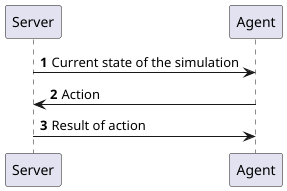
- The Server sends the current state of the simulation to the agent.
- The Agent responds with the action it chooses.
- The Server steps through the simulation and sends a summary of the result to the Agent. This includes data about the simulation itself such as if the episode is finishing or the current “score”.
This process is repeated until the simulation finishes.
In the multi-armed bandit scenario, these messages are serialised as the BanditState, BanditAction and BanditReward objects.
Patterns for multi agent simulations
Multi-agent simulations can also use the state → Action → Reward pattern, however it becomes more complicated when a single agent can cause the episode to end for all agents (such as winning the episode or making an illegal move). Then the problems becomes how do you tell the other agents about the end of the simulation (and not ask for an action in return).
To get round this issue, a simulation can delay sending the reward message until just before the next state is sent.
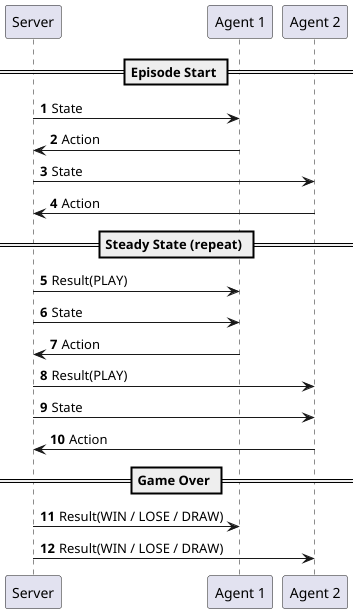
The diagram shows three distinct phases for a two-agent game:
Episode Start — Each agent receives a State and responds with an Action. No Result is sent yet because there is no prior action to report on.
- Server sends State to Agent 1.
- Agent 1 responds with an Action.
- Server sends State to Agent 2.
- Agent 2 responds with an Action.
Steady State (repeat) — Before each agent’s next turn, the server sends the Result of their previous action (with a PLAY signal indicating the episode continues), immediately followed by the new State. The agent then responds with their next Action. This is the key insight: the Result is deferred until the start of the next turn rather than sent immediately after the action.
- Server sends Result(
PLAY) to Agent 1. - Server sends State to Agent 1.
- Agent 1 responds with an Action.
- Server sends Result(
PLAY) to Agent 2. - Server sends State to Agent 2.
- Agent 2 responds with an Action.
This steady-state loop repeats for the duration of the episode.
Game Over — When the episode ends (a player wins, makes an illegal move, or the game is drawn), the server sends a final Result to every agent with the appropriate signal (WIN, LOSE, or DRAW). Because there is no subsequent State message, no agent is asked for an Action — this cleanly communicates the outcome without requiring any special handling on the agent side.
- Server sends Result(
WIN/LOSE/DRAW) to Agent 1. - Server sends Result(
WIN/LOSE/DRAW) to Agent 2.
By deferring the Result until just before the next State, this pattern avoids the problem of needing to notify non-active agents when the episode ends unexpectedly. Every agent always receives its final Result regardless of which agent caused the episode to end.
An alternative is the State + Signal → Action pattern.
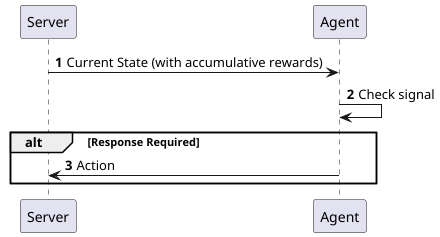
- The server sends the current state of the simulation to every agent. This includes any accumulated rewards (from previous actions), and an enumerated signal telling the agent if an action is required from them.
- The agent examines the signal and reads if an action is being asked for.
- If required, the agent sends an action to the server, which is used to drive the simulation forward.
This process can be repeated for any or all agents, as long as the simulation runs.
The advantage of this method is it’s possible to tell all agents when an episode ends, without triggering an action response. You can also use it to update inactive agents about any intermediate knowledge which they can use to update their internal state.
The disadvantage is, you rely on each agent to correctly read the signal and not get out of sync with the other agents.